Annotate
1. Start Annotation
1.1 Manual Annotation
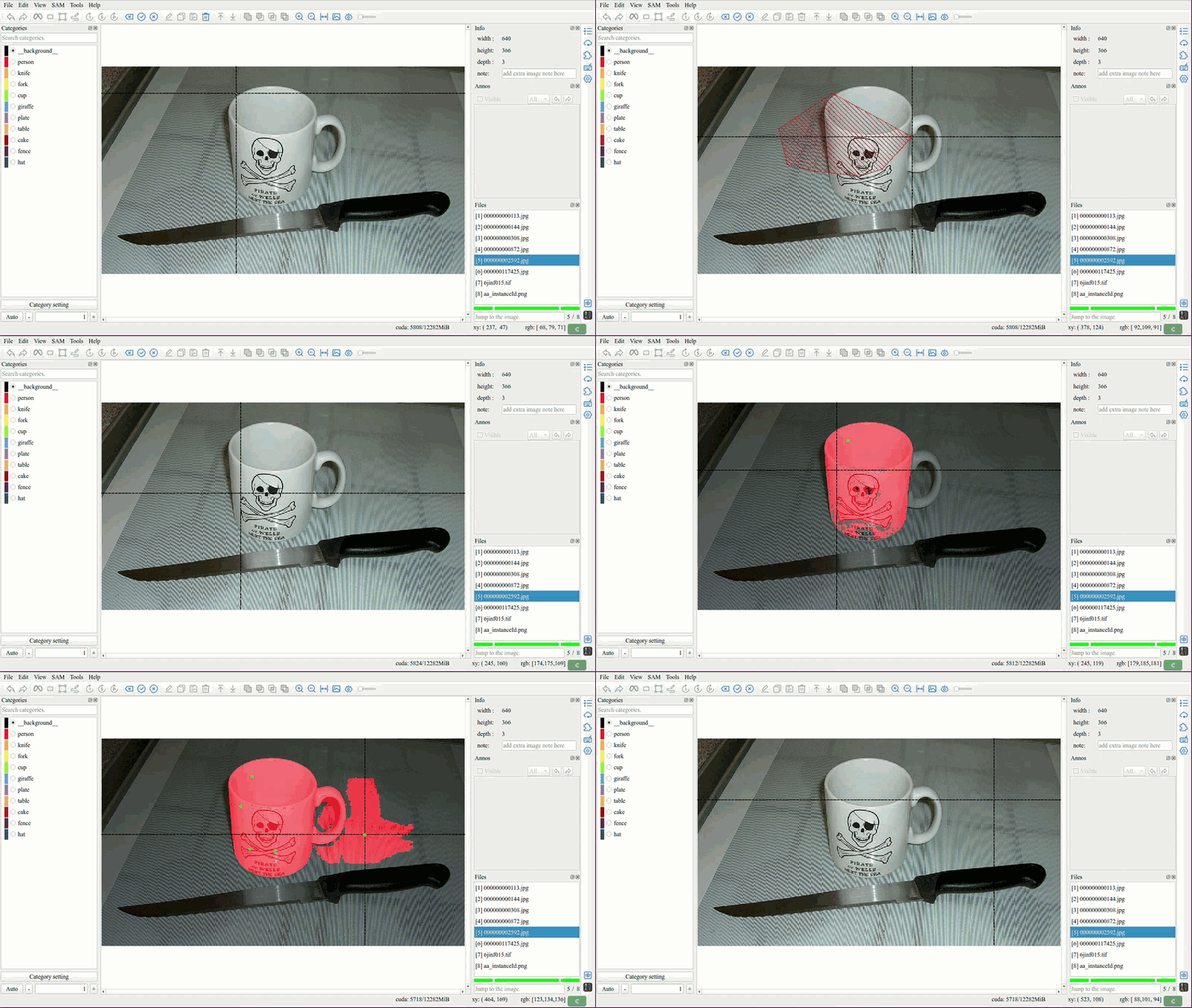
Click the Draw Polygon button [C] in the toolbar to start manually annotating a polygon.
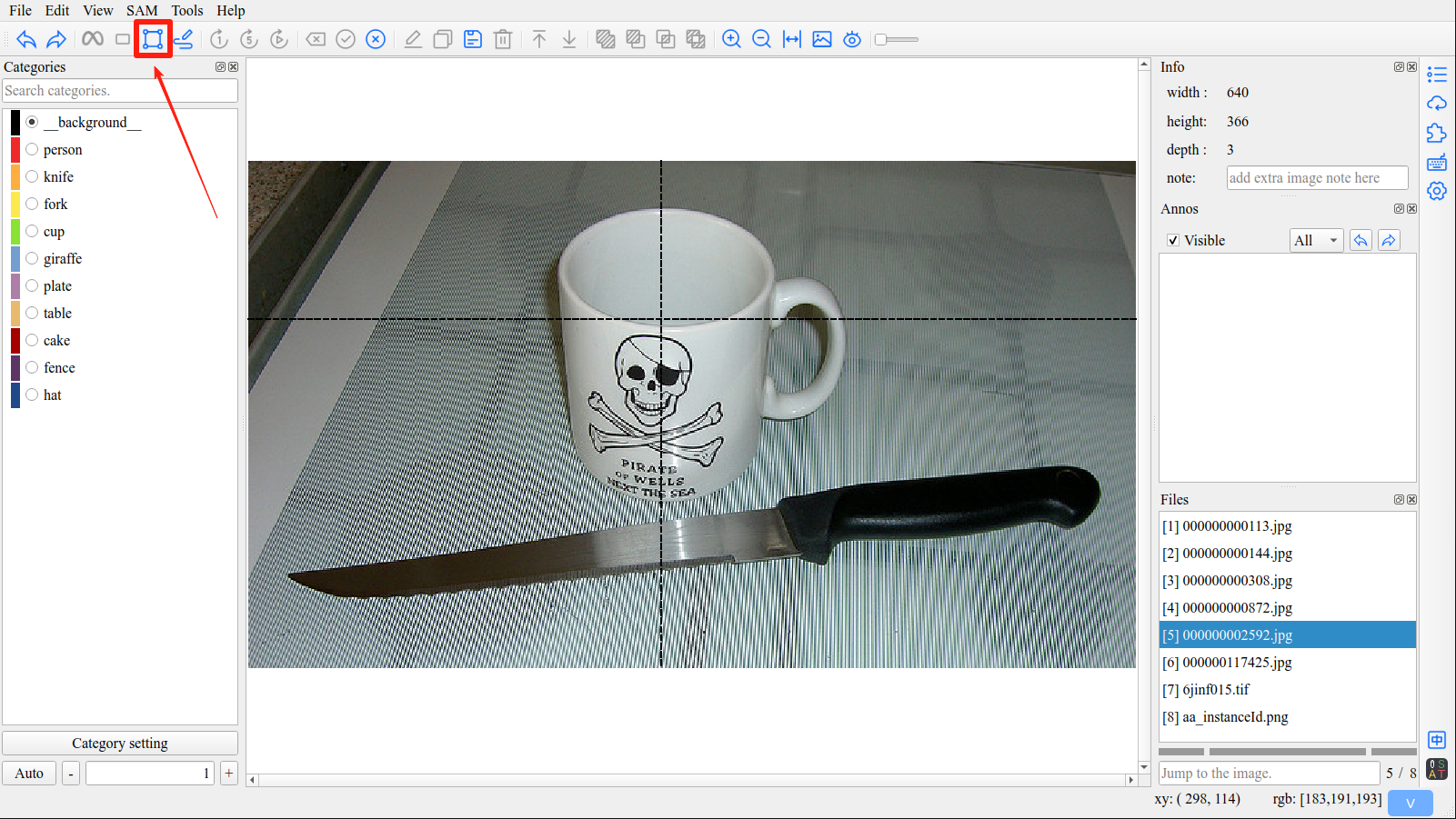
Manual annotation offers two methods: clicking and dragging.
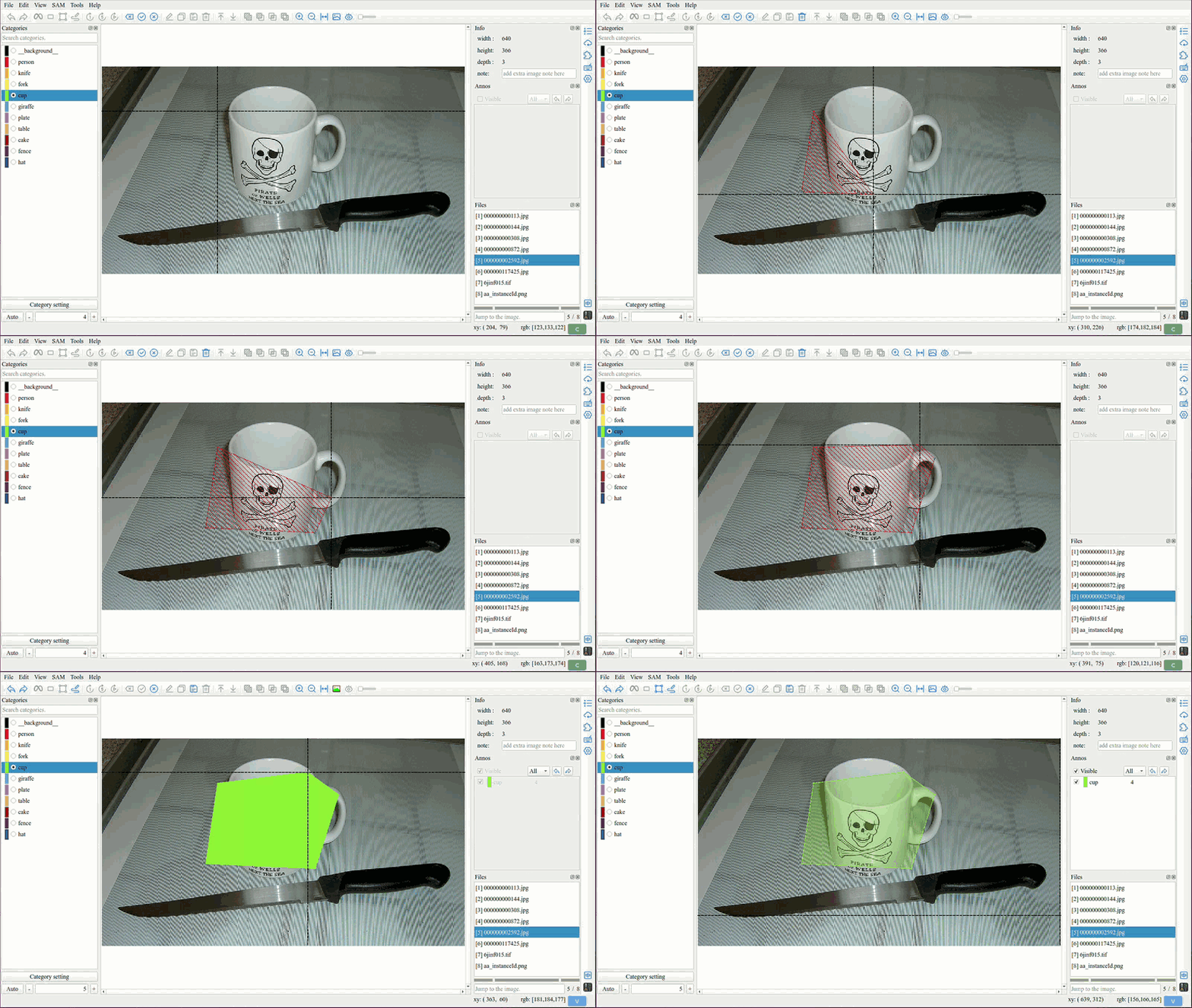
1.1.1 Clicking Method
Clicking is the most common annotation method, with each click adding a polygon vertex.
1.1.2 Dragging Method
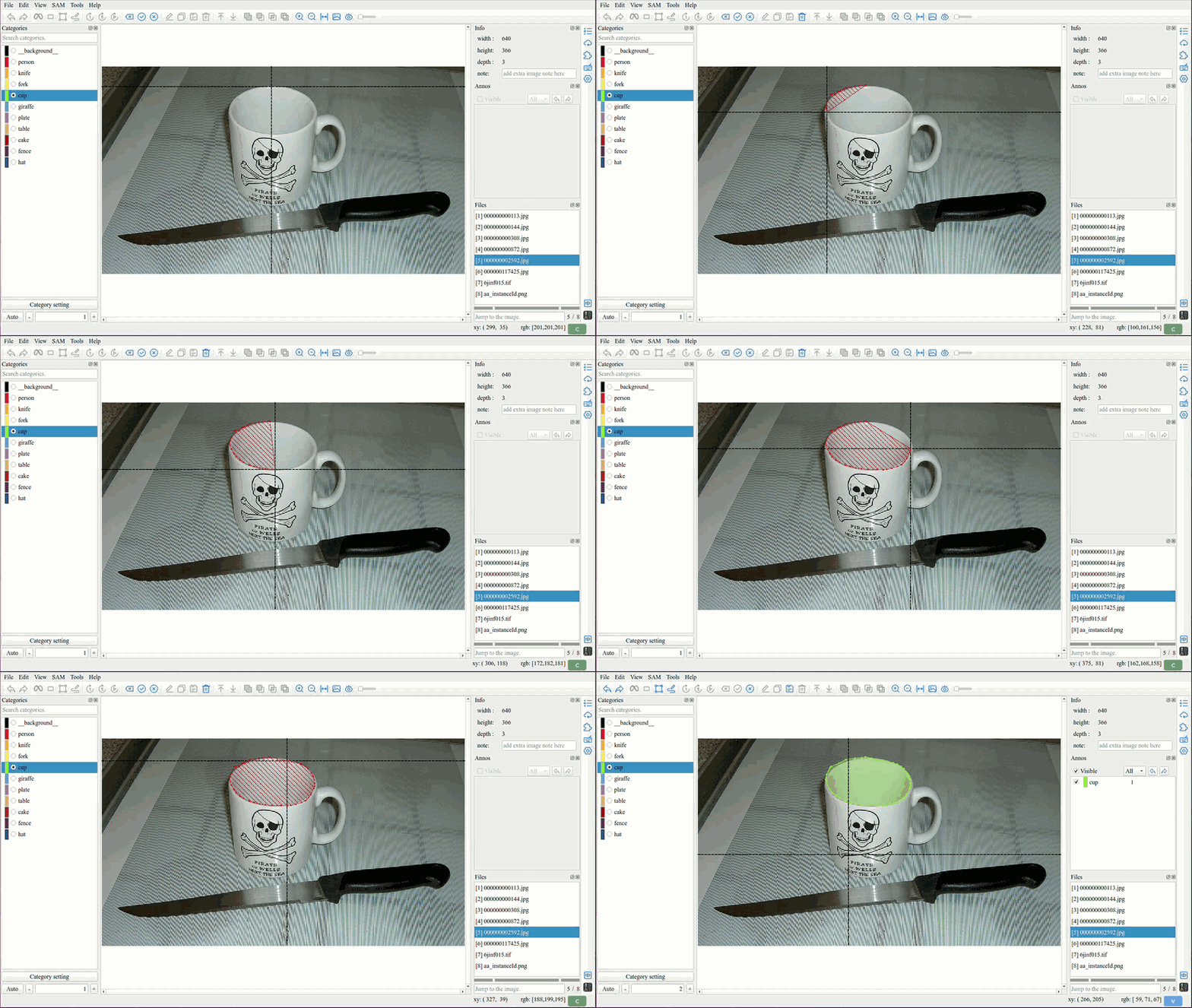
By pressing and holding the left mouse button and dragging the mouse, (0.15s per point)
Tip
With the Dragging method, you can easily draw curves.
1.1.3 Shift Key Constraint
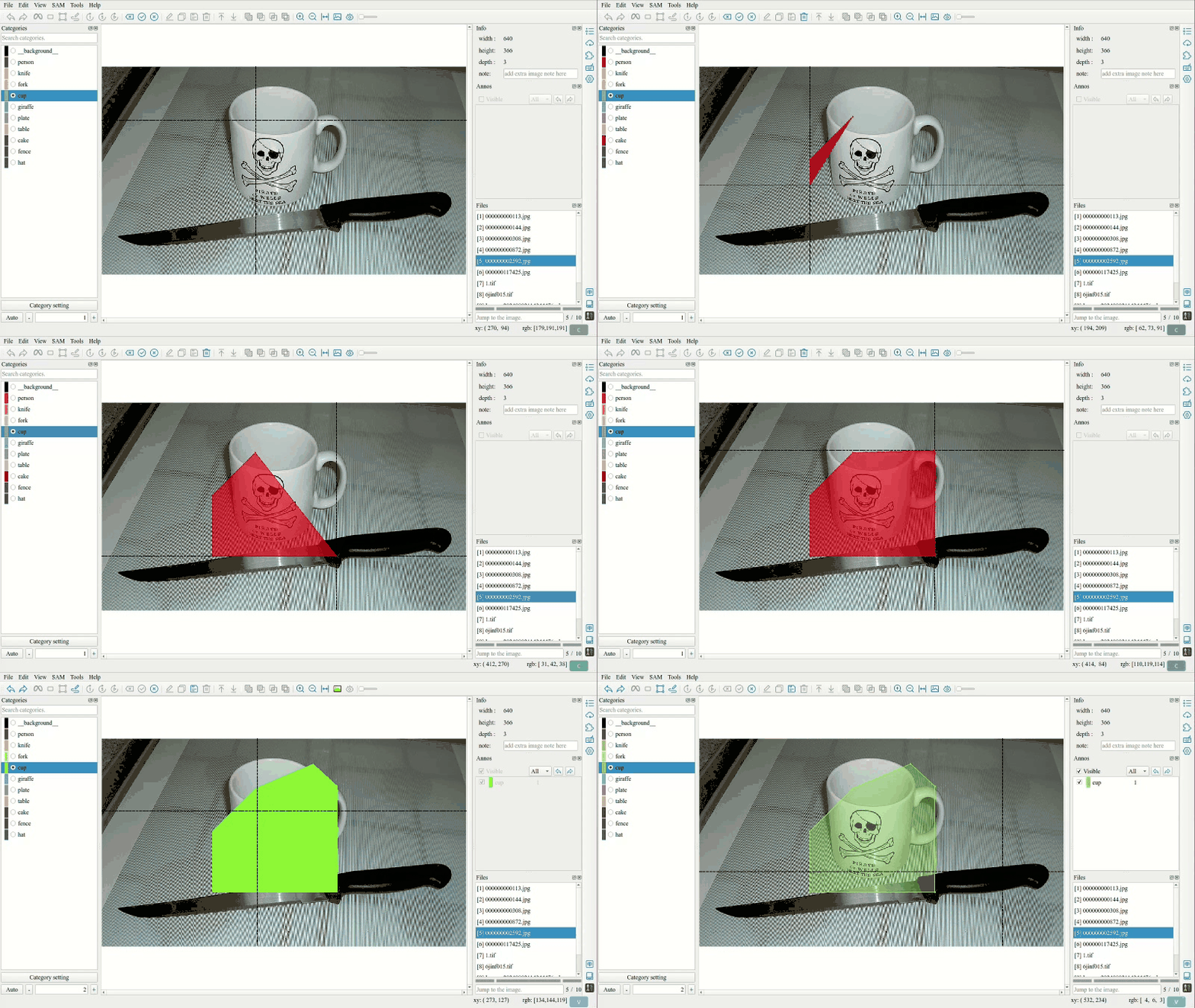
Hold the Shift key while drawing to constrain lines to horizontal, vertical, or 45-degree angles.
Tip
This feature is useful for annotating objects with regular shapes like buildings, documents, or signs. The line will automatically snap to the nearest 0°, 45°, 90°, 135°, or 180° direction.
1.2 Semi-automatic Annotation
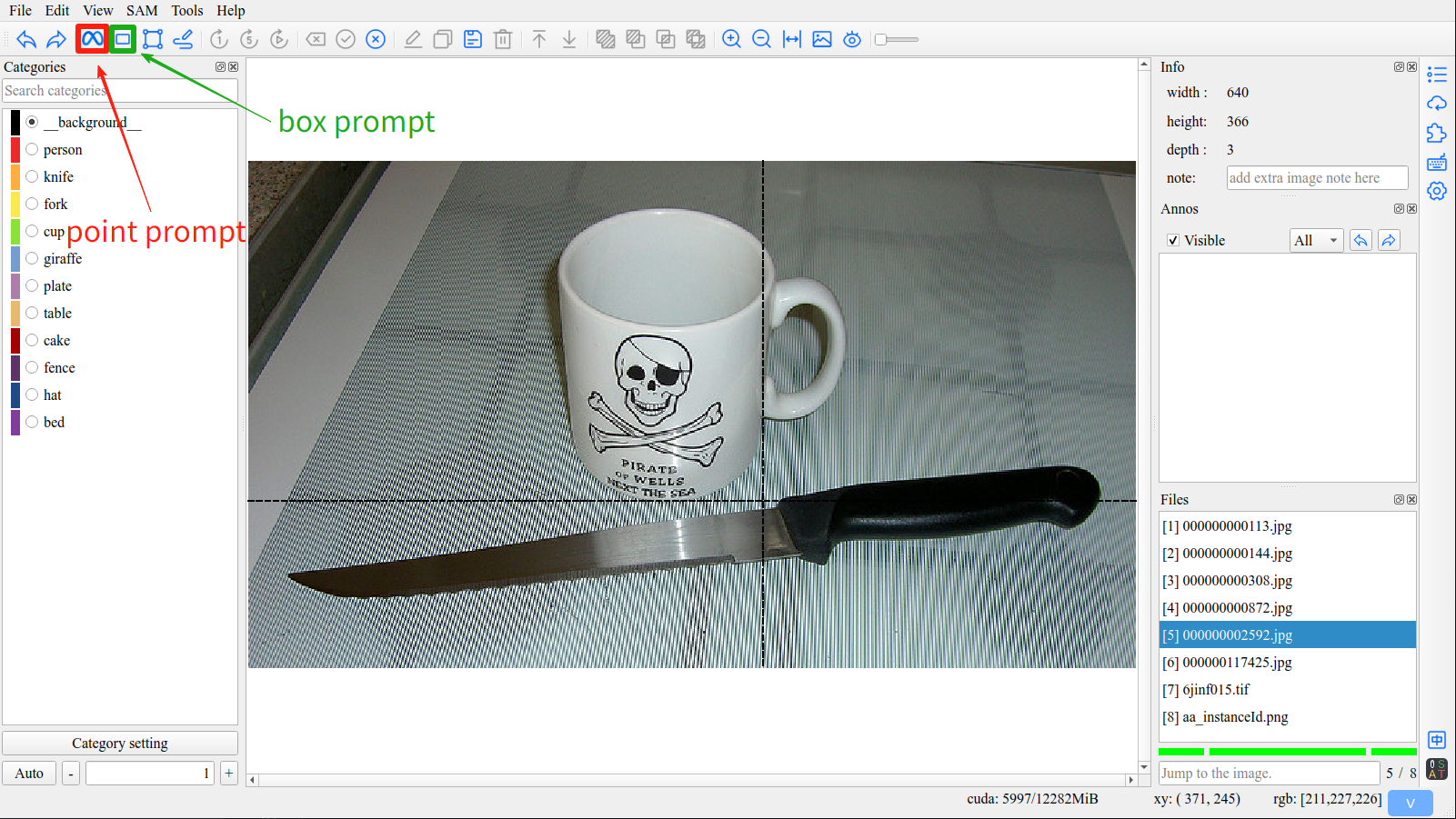
Utilizes SAM with point and bounding box prompts.
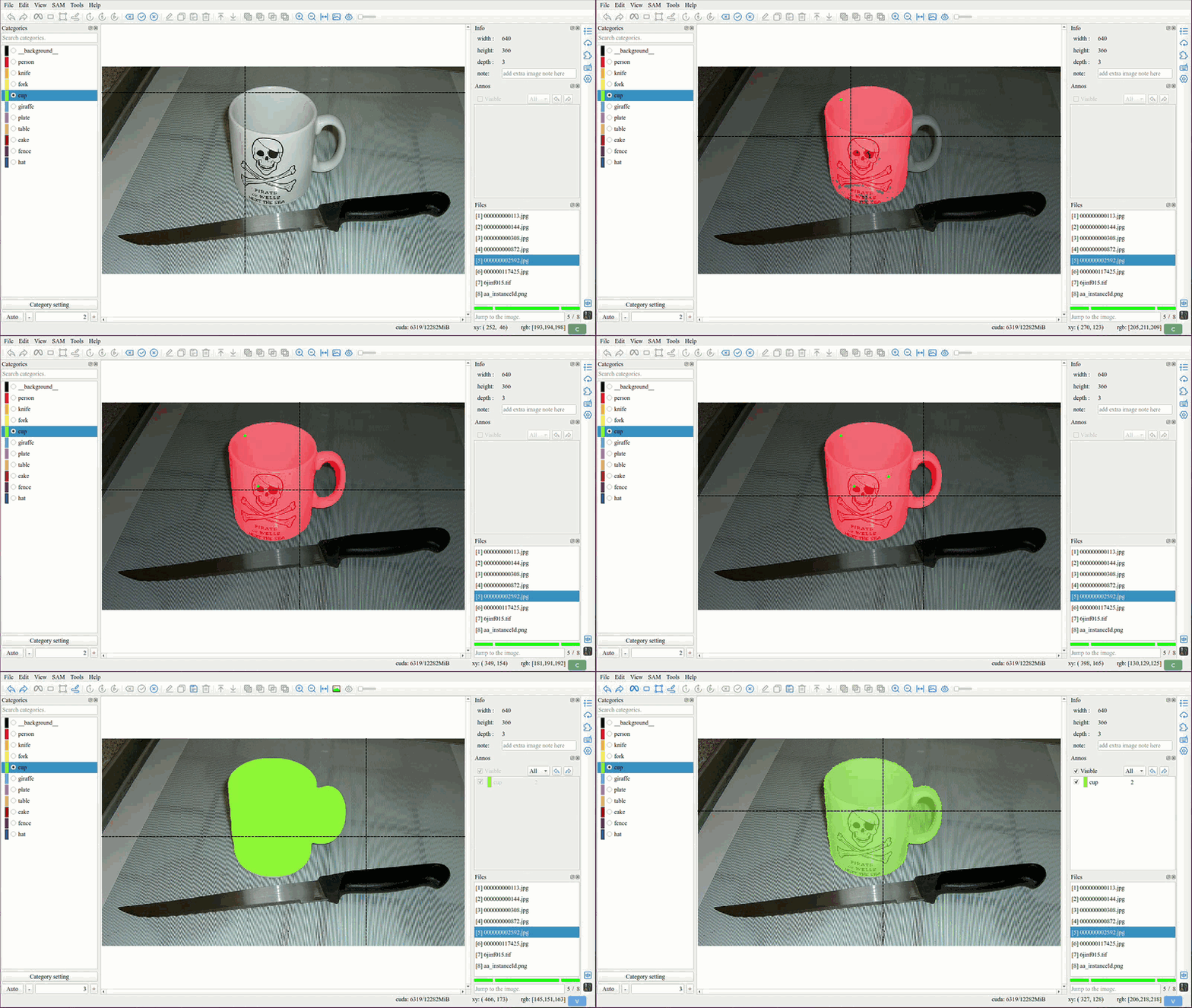
1.2.1 Point Prompt
Click the Segment anything point button [Q] in the toolbar to start SAM point prompt.
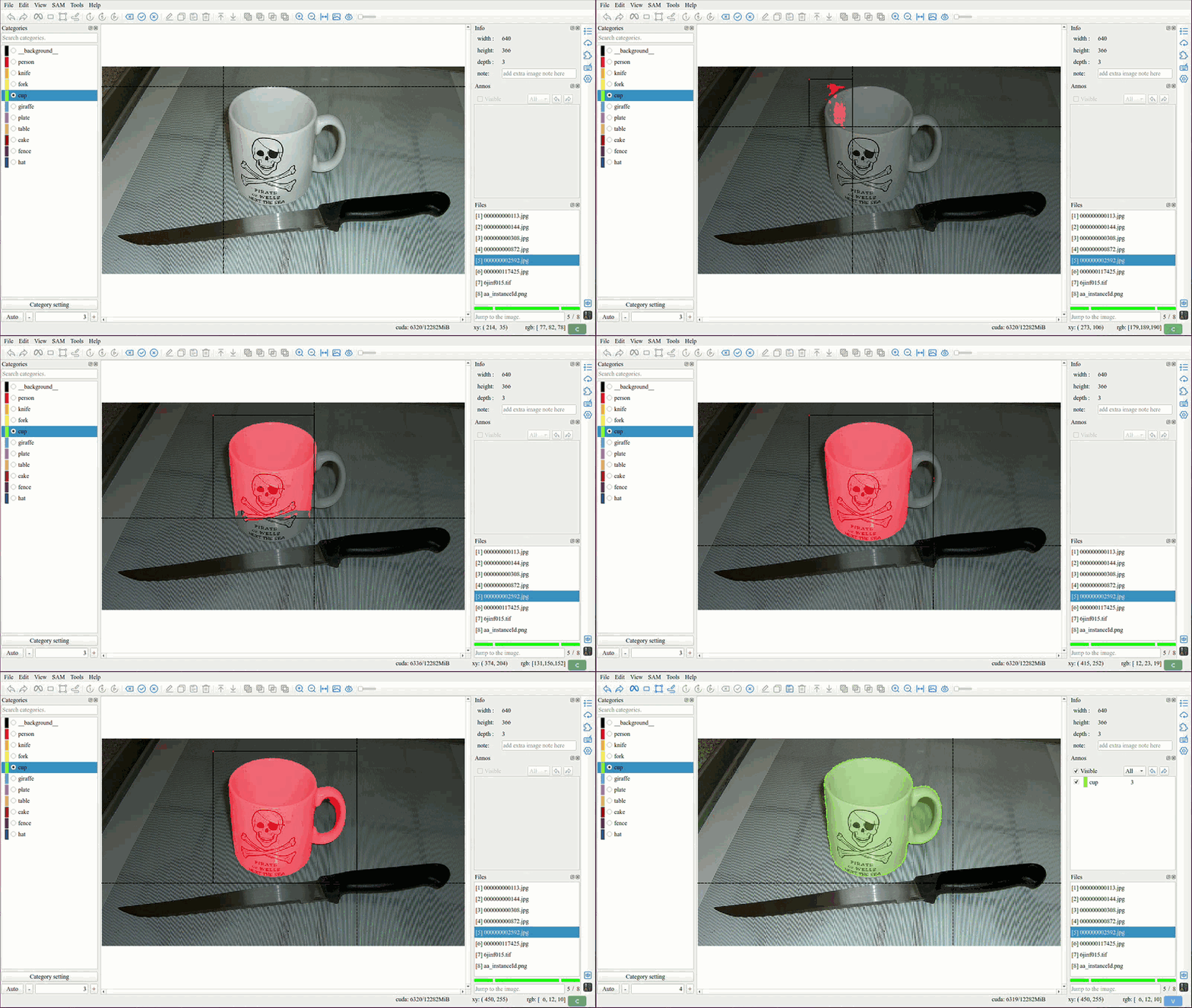
1.2.2 Box Prompt
Click the Segment anything box button [W] in the toolbar to start SAM box prompt.
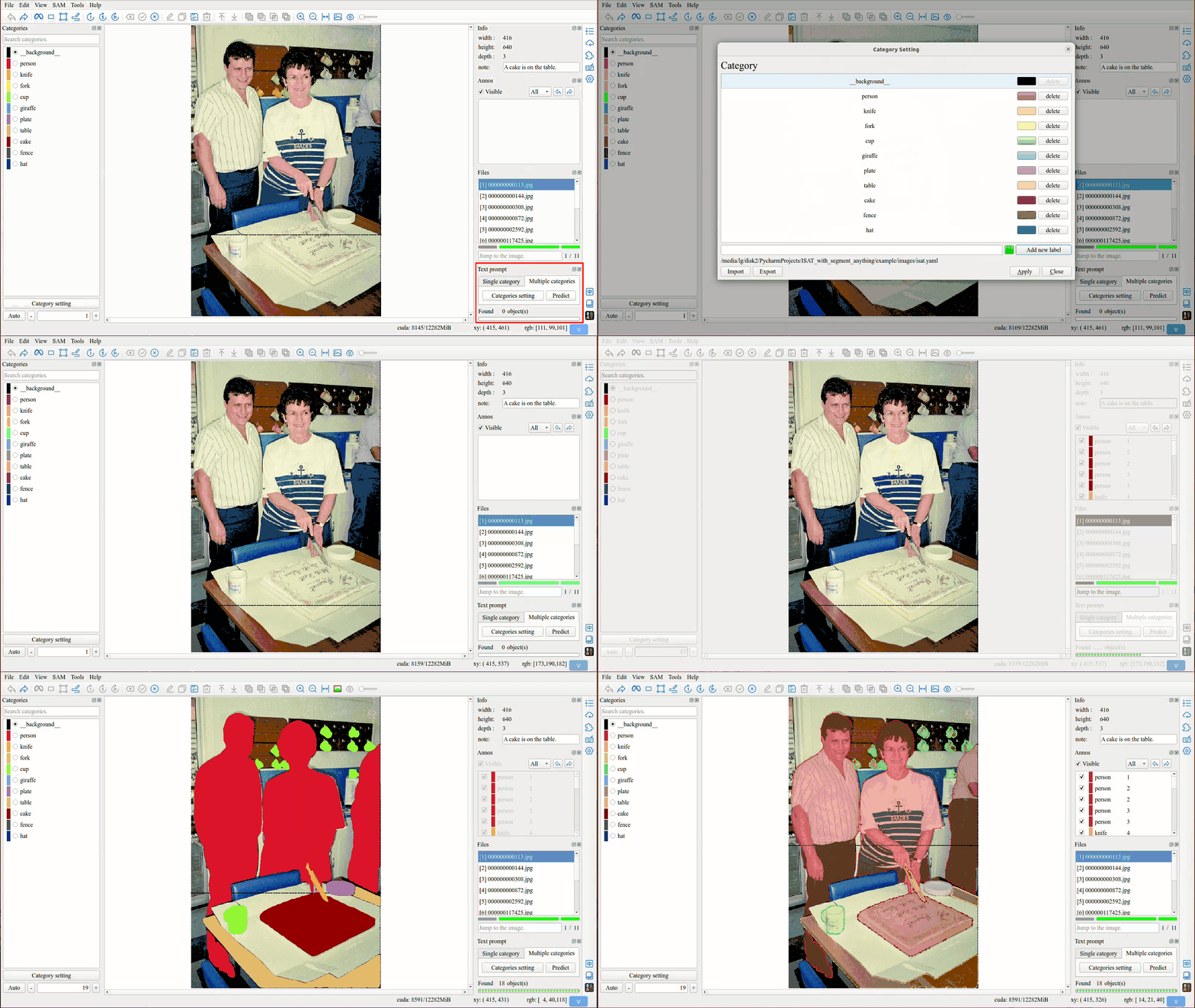
1.2.3 Text Prompt
Since v1.5.0, ISAT supports the text prompt function based on sam3.
Input a prompt text for prediction.
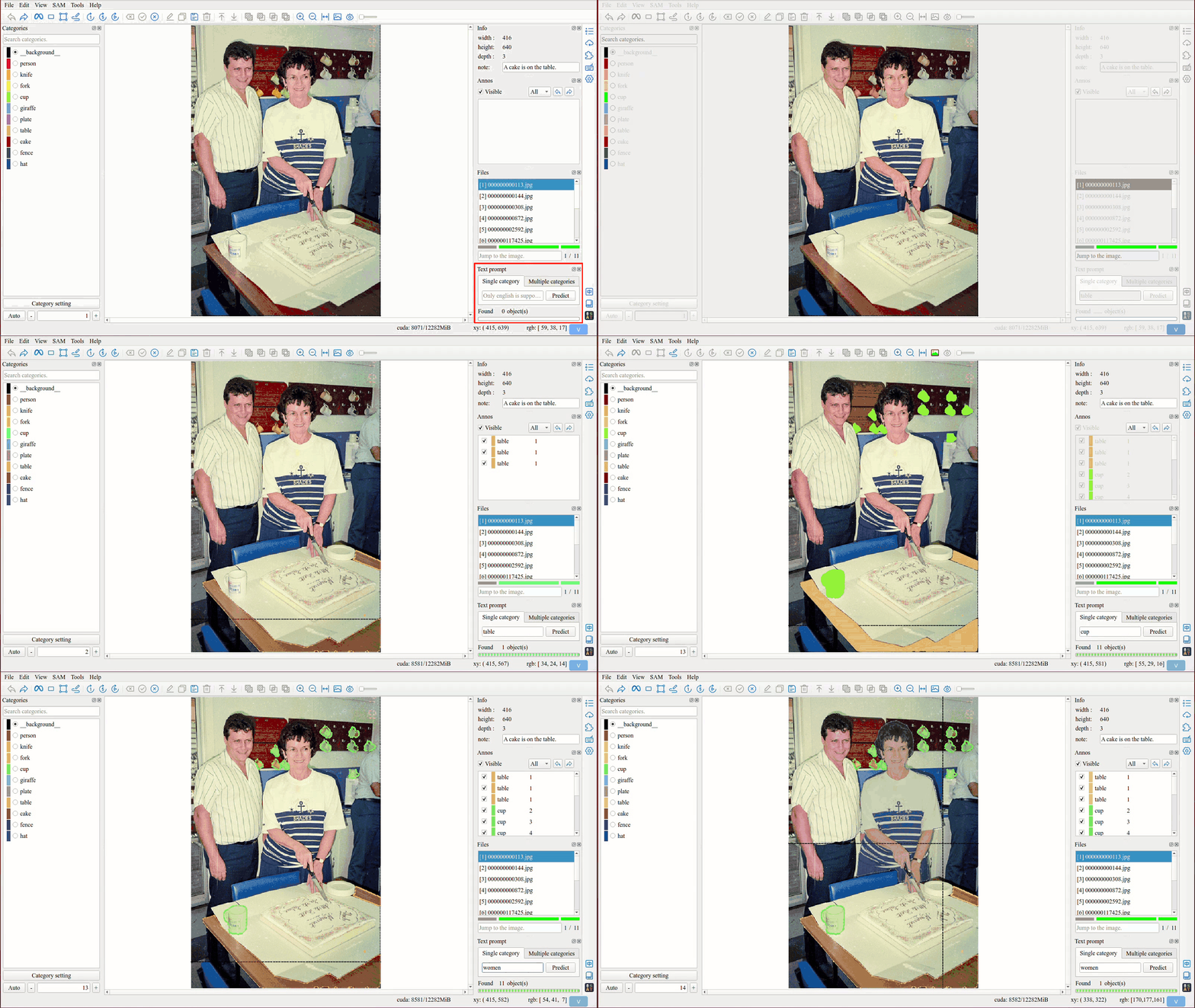
Using the categories set in ISAT to prediction.
1.2.4 Visual Prompt
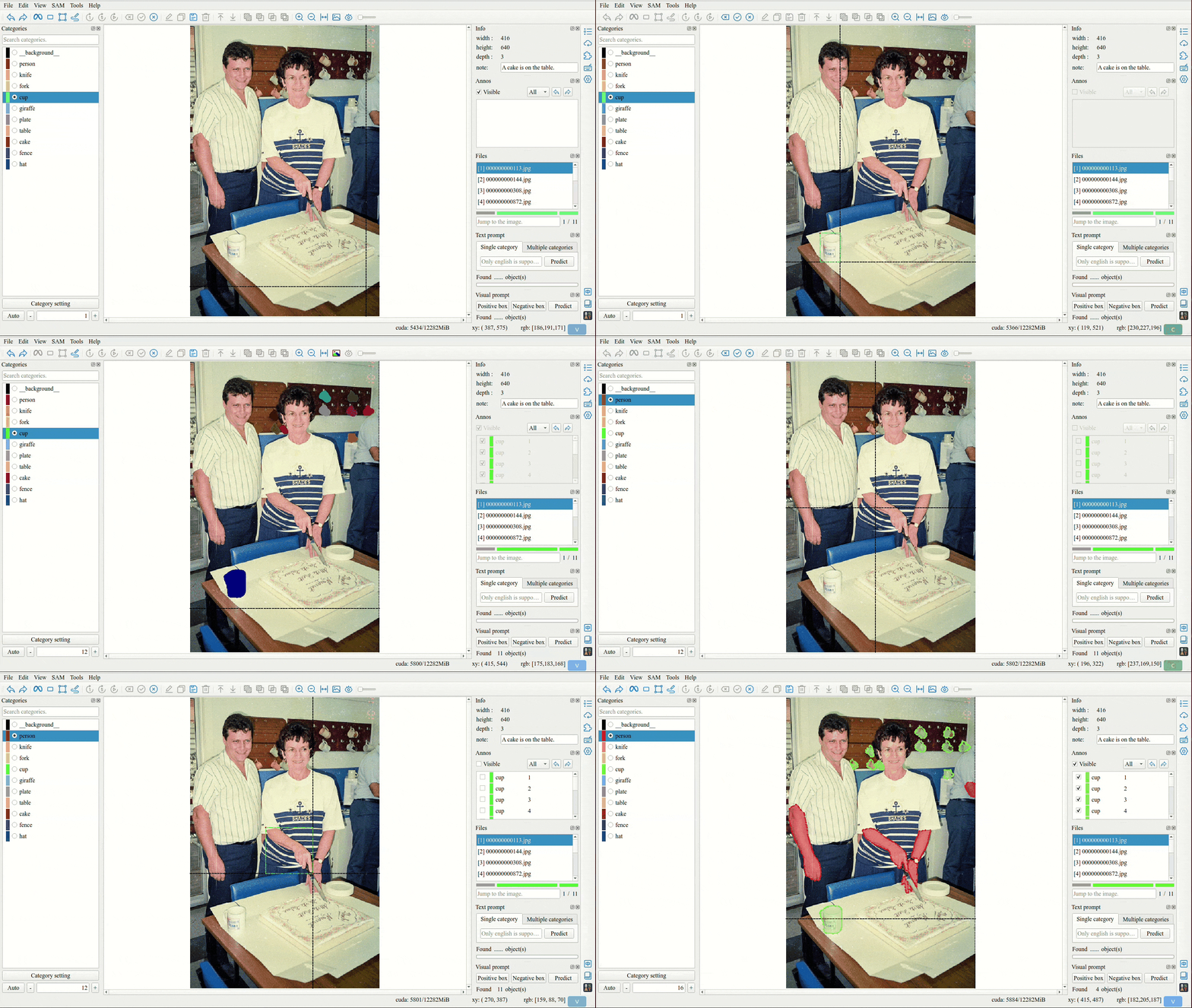
Since v1.5.2, ISAT supports the visual prompt function based on sam3.
Use the positive box and negative box for prediction.
2. Finish Annotation
Click the Finish annotation button [E] in the toolbar to end the annotation.
When using sam point prompt or box prompt, finish annotation will convert the mask into a polygon on the canvas.
Tip
ISAT offers multiple conversion methods, which you can find in the settings interface.
Contour mode:
External contours
Only max contour
All contours
For detailed usage, please refer to Contour mode.
3. Cancel Annotation
Click the Cancel annotation button [Esc] in the toolbar to end the annotation.
4. Backspace
Click the Backspace button [Z] in the toolbar to return to the previous annotation state.
5. Video Annotation
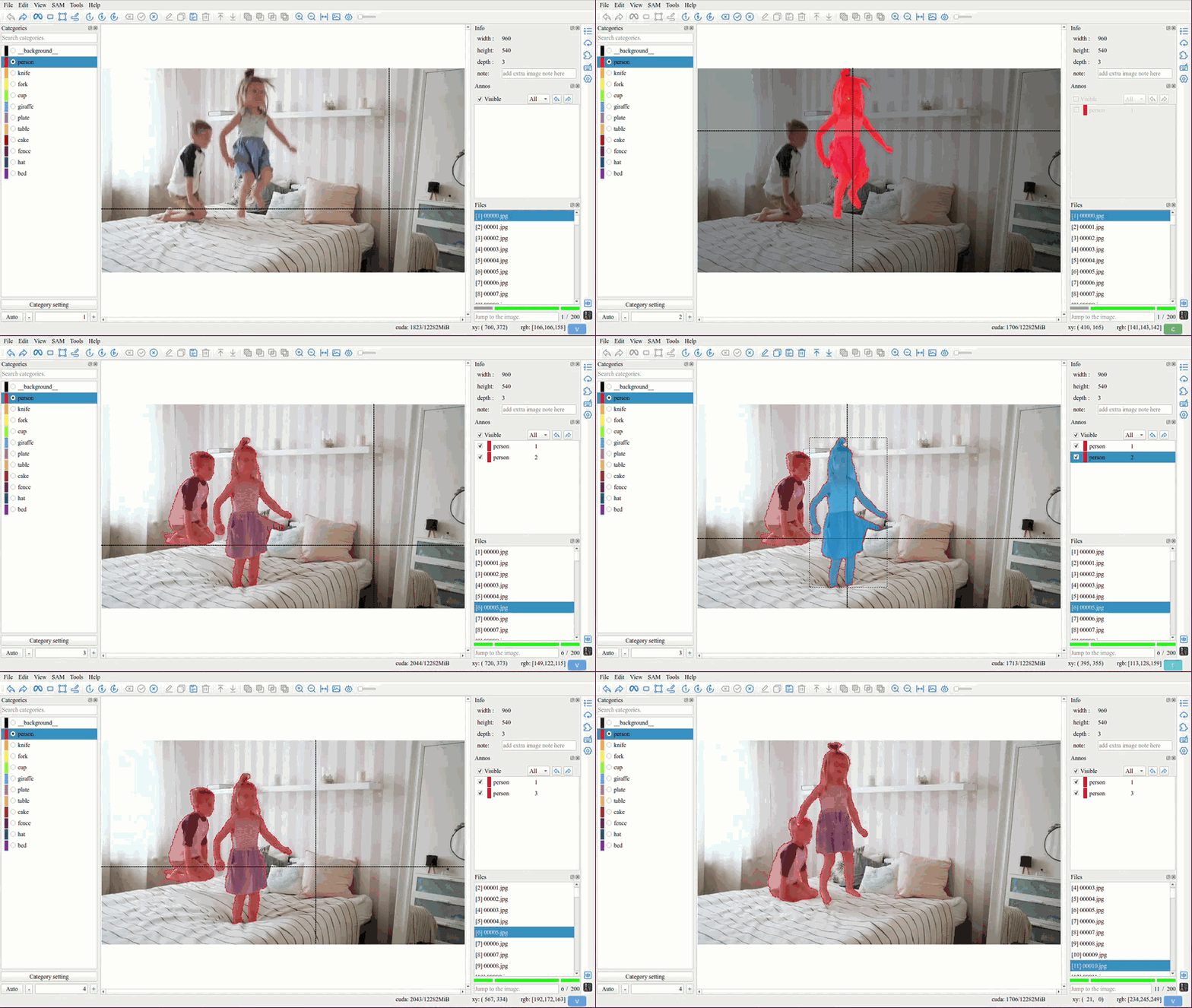
ISAT uses SAM2 or SAM3 for video annotation, provides the functions of annotating the next frame, the next five frames, and the entire video.
Tip
Video annotation process:
Select SAM2, SAM2.1 or SAM3 model.
Start the video annotation with an already annotated frame.
Click the
Video segment oncebutton orVideo segment five timesbutton orVideo segmentbutton.